Overview
Vinyl cutting is a process that uses a machine equipped with a sharp blade to precisely cut designs or shapes from adhesive vinyl sheets. The cut vinyl can then be applied to various surfaces, such as walls, windows, or vehicles, for decorative or promotional purposes.
Vinyl cutting is full service. Patrons will use our provided template to create a design file, then submit a ticket. Staff will verify the file and communicate any potential issues. If adjustments are needed, patrons will need to edit and resubmit the file by replying to the ticket email. To learn the basic software, visit the MakerLab How-to Guide page or request a consultation if you have more specific questions.
Patrons then provide the materials for the project by dropping them off at the MakerLab during open hours. A list of approved materials is available below.
Completion time will depend on complexity and current demand for the equipment. Please submit projects at least 1 week ahead of time. When the cut is completed, patrons will be notified via email. Completed projects will be held for one week. After that, unclaimed items will be discarded.
Equipment
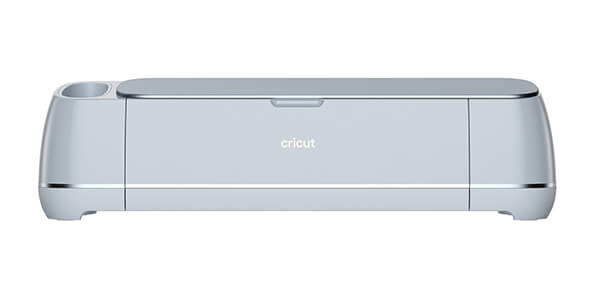
Cricut Maker 3
Vinyl cutting is a digital fabrication process that uses a blade to precisely cut shapes, text, or designs from adhesive vinyl or other thin materials. The blade follows a vector-based design without cutting through the backing, allowing easy transfer. It's commonly used to make decals, signs, stencils, and heat-transfer graphics.
Maximum Cut Area: W x D, 12 inches x 12 ft (0.125” margin needed)
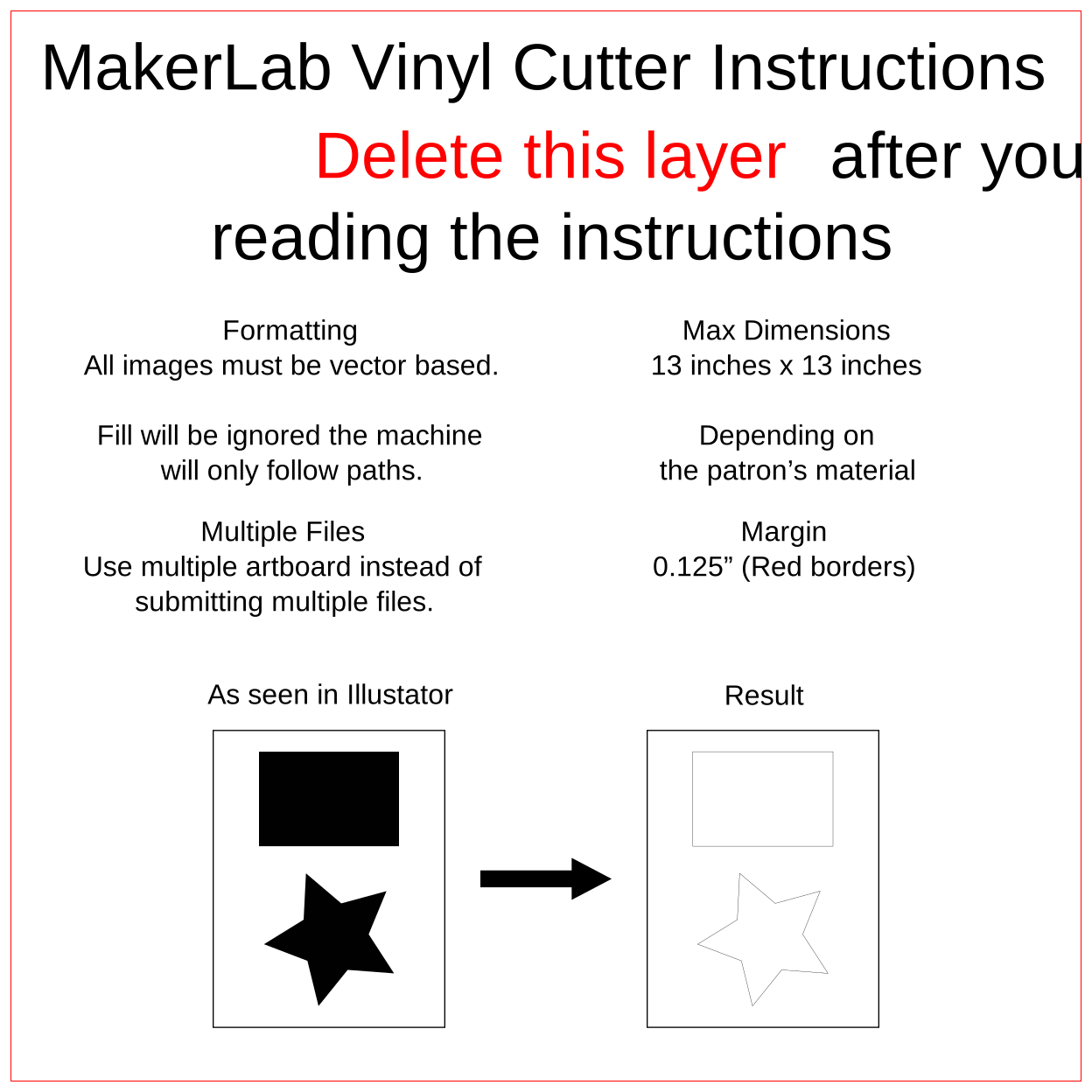
Required file units: inches
Download Template
Adobe Illustrator or Inkscape is needed to open and edit the template. If you do not have access to Adobe Illustrator, the software is available on the computers in the Digital Scholarship Center Data Studio on the 3rd Floor of Bartle Library.
The lab also supports Inkscape, a free and open-source design program. Please download and install Inkscape before accessing the template. To download the template, click "MakerLab Laser Cutting Template (INKSCAPE)", then right-click the file and select “Save As” to save it to your computer.
If your design only requires cutting, you can submit a .dxf file exported from your CAD software.
To learn the basics of the software, visit the MakerLab How-to Guide page.
Makerlab Vinyl Cutting Template (.AI)
MAKERLAB VINYL CUTTING TEMPLATE (INKSCAPE)
Approved Material Types
Patrons can bring in materials from the list below. Alternatively, materials can be purchased from the Cricut material store.
- Removable (Smart) Vinyl
- Permanent (Smart) Vinyl
- Heat Transfer (Smart) Vinyl
For any questions about materials not on this list, contact the MakerLab Coordinator Chungmin Park by emailing cpark27@binghamton.edu.
Design Considerations
Use Vector Graphics
- Vinyl cutters follow paths, not pixels.
Keep Paths Simple & Closed
- All shapes should be fully closed paths (no gaps).
- Avoid open lines — the cutter won't know where to go!
- Use “Combine” or “Unite” path tools to clean up overlapping shapes
Minimum Feature Size
- Avoid tiny details:
- Minimum line thickness: ~0.5 mm
- Minimum text size: ~6–8 pt, but 10+ pt is safer for weeding.
- Too-small features = hard to cut cleanly + difficult to weed.
Weeding-Friendly Design
- Weeding = removing unwanted vinyl after cutting.
- Avoid highly intricate or delicate patterns.
- Add “weed boxes” around designs to isolate sections.
- For text: connect dots and floating parts (like in “i” or “e”) so they don’t peel off.