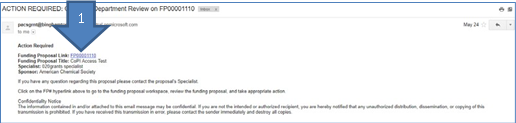
Department reviewers receive an email when a funding proposal is submitted for review
and approval prior to submission. Click on the link provided within the email to directly
access the proposal.
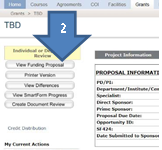
The link provides access to the proposal’s main screen. Click View Funding Proposal
at the left of the screen to open the content of the proposal.
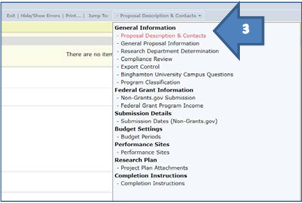
The proposal will open as a series of data screens that can be accessed either by
clicking Continue at the bottom of the screen, or using the Jump To Menu, which provides access to the individual “pages” of the proposal.
FOA, funding guidelines, or any submission‐related sponsor documents can be accessed
under General Submission Information.
Proposal documents can be accessed under Project Plan Attachments.
Budget‐related documents are located with the proposal budget, which can be accessed
by clicking Exit at the top of the page, which will return to the main proposal screen. (See 4 below)
To access budget information, from the main proposal screen, select the Budgets tab
at the top of the screen.
Click on the sponsor budget name (5 above) to open the sponsor budget. Review the
overall budget grid available on the budget page, or select Printer Version at the
right to open the full budget.
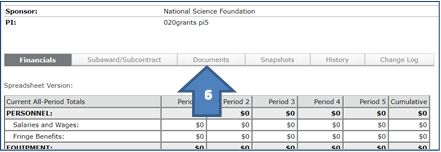
Review budget‐related documents (budget narrative/justification, BU‐required budget
documents, cost‐share commitments) by selecting the Documents tab.
Return to the proposal record by selecting the proposal name from the “breadcrumb”
menu at the top of the screen (“TBD” in the example below).
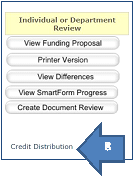
Review Credit Distribution information by clicking Credit Distribution on the proposal record screen, and return to the proposal record by clicking OK.
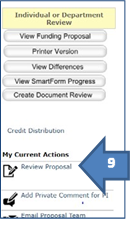
Approve or disapprove the proposal by clicking Review Proposal on the proposal record
screen. The proposal will proceed to the next stop in the routing hierarchy (additional
departments, deans’ offices, etc).