Guide to Online Chemical Inventory (LabCliq)
Access to the program is restricted, you will only be able to access the program if an affiliation has been created within the program. This can be done by your PI adding you to their roster in LabCliq or by attending an EH&S In-person training.
|
The following affiliations have the edit permissions: |
|
|
Full Editing
|
Roster Role
|
|
Limited Editing
|
Roster Role
|
Overview
Navigating to the “Inventory” Tab should automatically display chemicals from areas you are affiliated with, with the sitewide filters. If it does not you can select the “Mine” button.
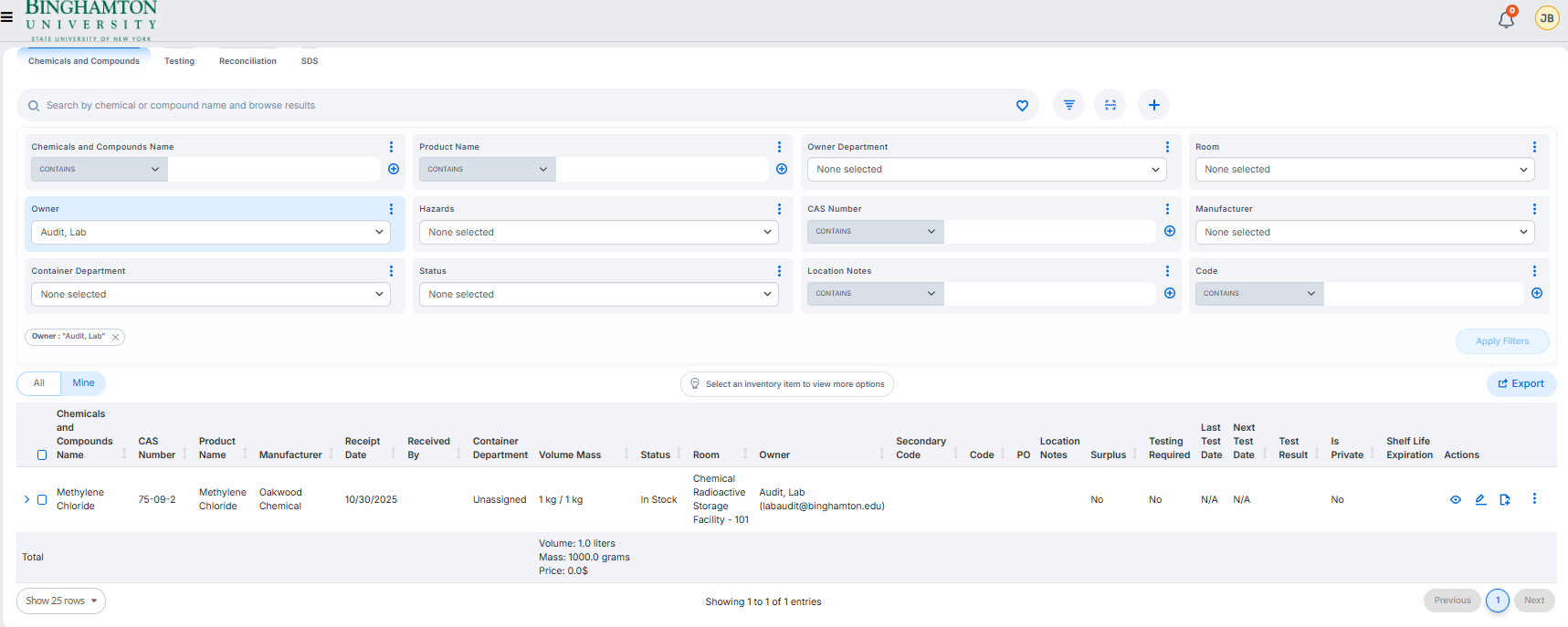
Filters:
The preselected filters are shown to all users as a sitewide feature. There are other
features that can be chosen by selecting the  button.
| Chemical and Compound Name | This is the specific makeup of the material. |
| Product Name | This is the trade name or the name printed on the label. |
| Hazards | The GHS or NFPA hazards associated with the material |
| Status | “Disposed”, “In Stock”, “Not Found” |
| Location Notes | The location in the lab this material is located in. Ex: Flammable Cabinet A, Sequencing Shelf, Bench C. |
| Code | The Unique Barcode ID associated with the container. There may be numbers that were preloaded into LabCliq by the developers. |
Examples: Product Name: Sodium Sticks in Mineral Oil Chemical Name: Sodium
Header Options are displayed in order of assigned priority depending on the screen size. Lower priority options can be displayed by using your browser's “Zoom out” feature, which on Chrome is CTRL+Scroll. Some Headers are sortable others are not, you can test this by clicking the header.
Editing/Adding New Chemicals
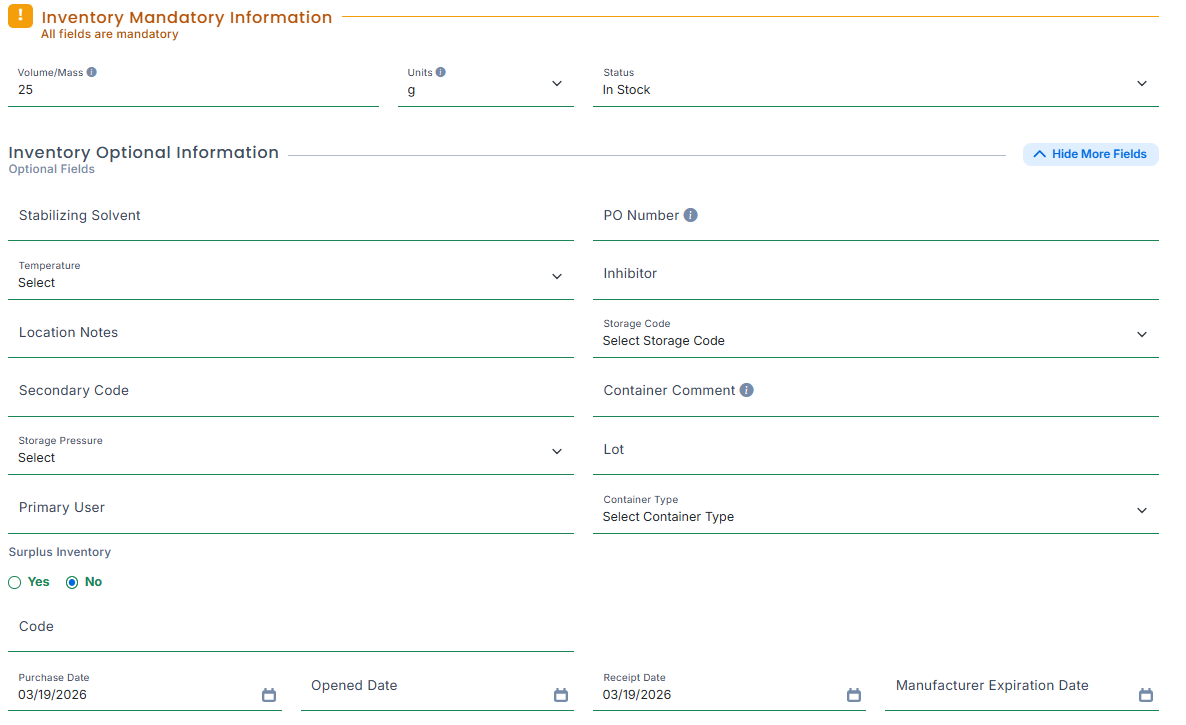
Single items can be edited by clicking the “eye” button on the right of the line item you want to edit. This will display all the fields associated with the material. Clicking “Edit” on the bottom will display the editable fields, with mandatory fields underlined in RED
Adding New Chemicals
You can add new chemicals by clicking the  at the top near the search bar then “Search and Add from Catalog”, or duplicate an
existing container by clicking the inline
at the top near the search bar then “Search and Add from Catalog”, or duplicate an
existing container by clicking the inline  .
.
The Plus sign will bring you to the page below, where you can type the material into the search bar at the top. The CAS or Manufacturer fields can also be input to narrow down the results. If the product you are looking for is not shown, you can change the search bar from "Local" to "Global", this will widen the search. If your product still does not show, you can click the "Click Here" button at the very bottom of the screen
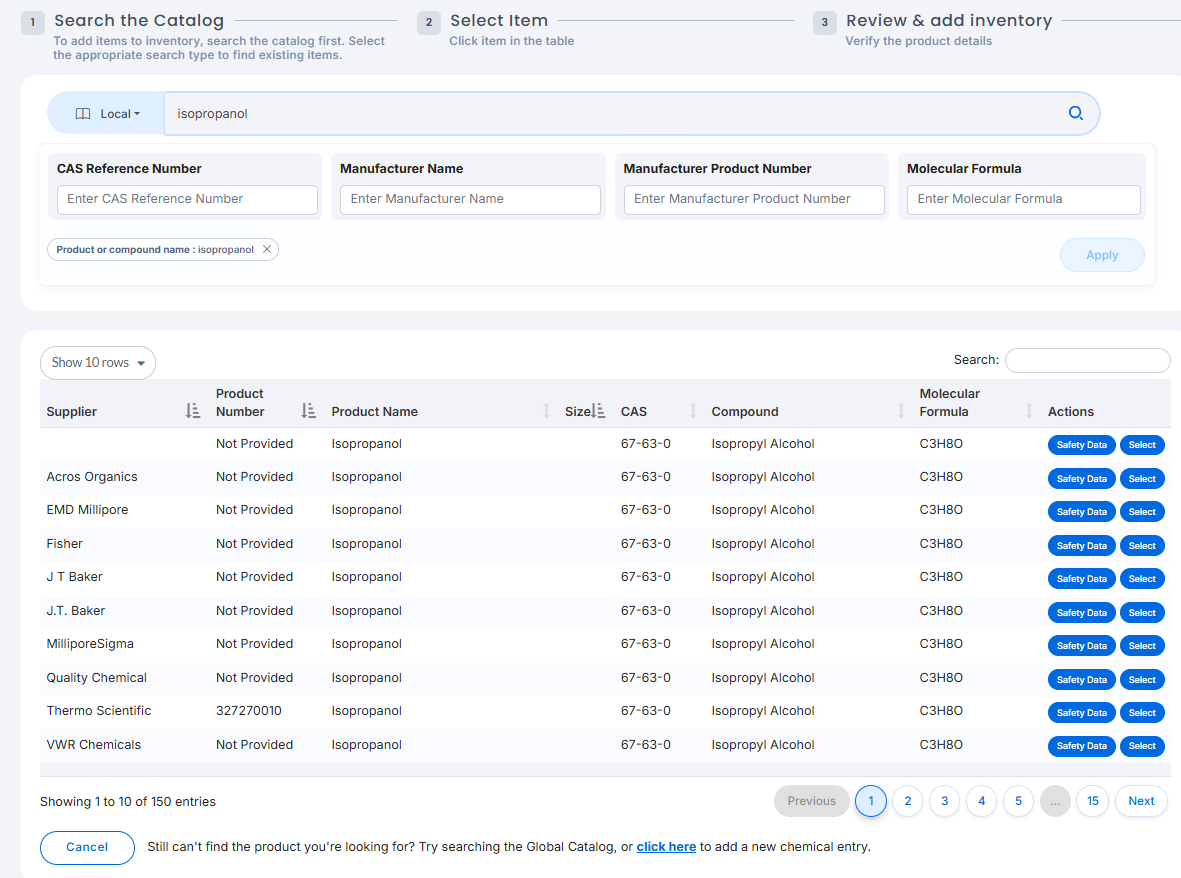
Click the "Select" Button on the line item you want to select. This select the item and prompt you to fill out any important information such as volume, units, location notes, room number, and many other optional fields.
Adding Materials not in catalog
If the chemical you want to add to the catalog is not in the program, or it is not from the same manufacturer your container is from. Doing this is easy, by clicking “click here” at the bottom of page you will be displayed the following screen:
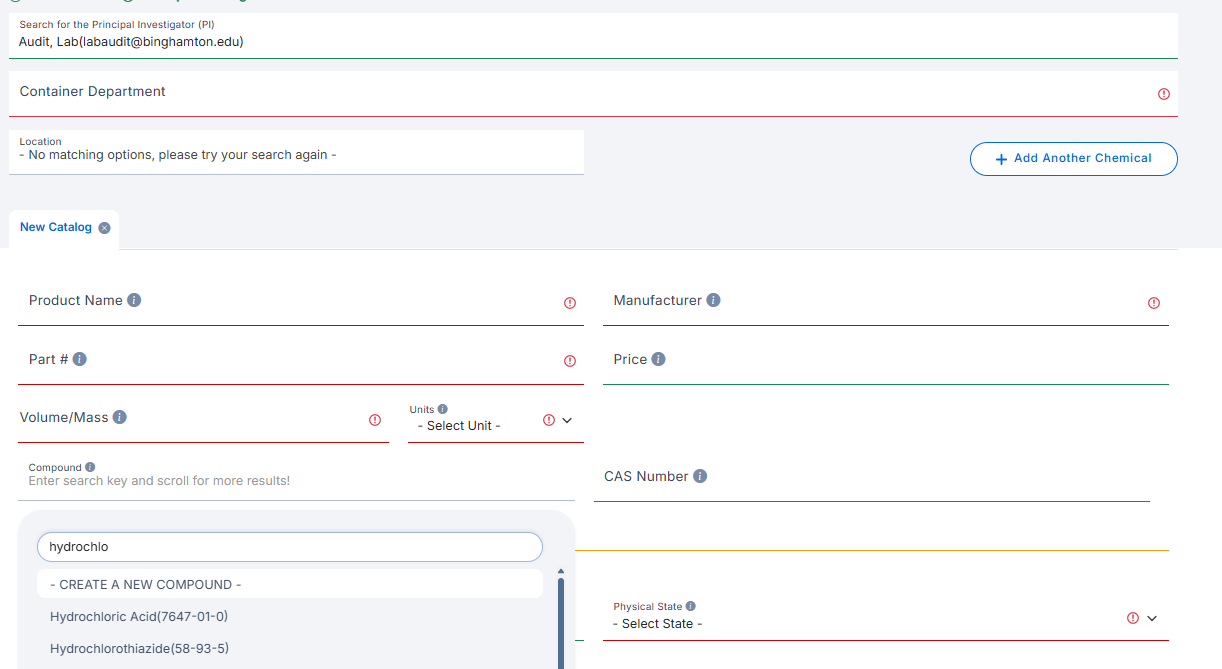
Here you can fill in the product name, Manufacturer, Part #(put Not Provided if you do not have it), Volume and Units are required.
IMPORTANT: Selecting the appropriate compound is what loads the safety information in. Select the correct material or main ingredient from the list by typing it in or typing the CAS number. If the material is not present, notify EH&S right away.